Dual In-Line Memory Module (DIMM): What It Is and How to Choose One
A dual in-line memory module, commonly called a DIMM, is the physical RAM module installed in most desktop computers, workstations, and servers. DIMMs give a computer fast, temporary working memory so the processor can run programs, switch between tasks, and access active. data efficiently. If you are building a PC or upgrading memory, understanding DIMM compatibility is essential. The wrong RAM generation, capacity, or module type may not fit – or may prevent the system from starting at all.
What is a dual in-line memory module?
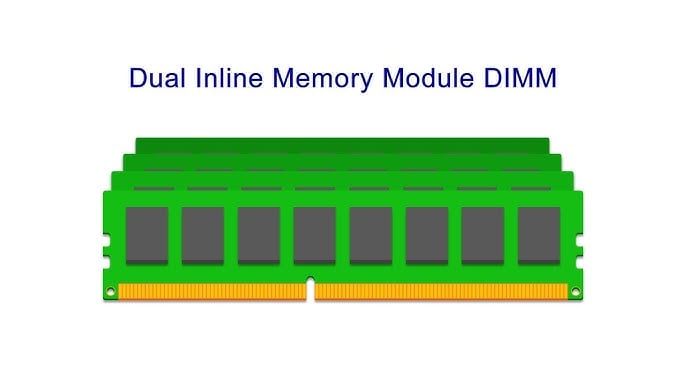
A DIMM is a circuit board that holds dynamic random-access memory (DRAM) chips. It plugs into a dedicated memory slot on a motherboard.
The phrase “dual in-line” refers to the module’s electrical contacts: the contacts on each side of the board are separate electrical connections. This differs from older single in-line memory modules (SIMMs), whose contacts on both sides were electrically identical.
Today, “DIMM” is often used as shorthand for standard desktop RAM. Most desktop motherboards use full-size DIMM slots, while laptops and compact PCs typically use smaller SO-DIMMs.
How DIMM memory works
RAM is short-term memory. It stores the data and instructions your computer needs immediately, such as an open web browser, a game level, a spreadsheet, or an editing project.
When there is not enough available RAM, the operating system must rely more heavily on storage. Because even fast SSD storage is slower than system memory, this can lead to delays, stuttering, and reduced responsiveness.
A DIMM works with the processor’s memory controller to move data quickly between RAM and the CPU. Modern systems commonly use DDR SDRAM, where DDR means “double data rate.”
DIMM vs. SO-DIMM: What is the difference?
The main difference is size and intended device type.
| Feature | DIMM | SO-DIMM |
|---|---|---|
| Typical use | Desktop PCs, workstations, servers | Laptops, mini PCs, compact systems |
| Physical size | Full-size module | Shorter module |
| Motherboard slot | Standard desktop DIMM slot | SO-DIMM slot |
| Interchangeable? | No | No |
A DIMM cannot be installed in a SO-DIMM slot, and a SO-DIMM cannot be installed in a standard desktop DIMM slot. Before buying RAM, check the motherboard or computer manual for the supported form factor.
Common types of DIMM RAM
DIMMs have evolved alongside DDR memory technology. The most common generations you may encounter are:
- DDR3: Found in older desktop computers.
- DDR4: Widely used in many modern PCs and workstations.
- DDR5: Used by newer desktop platforms and designed for higher capacities and bandwidth.
These generations are not interchangeable. Although some DIMMs may look similar, each generation has a differently positioned notch and uses different electrical specifications. A DDR5 DIMM will not work in a DDR4 motherboard, and a DDR4 DIMM will not work in a DDR5 motherboard.
For best results, match the exact DDR generation supported by your motherboard and CPU.
DIMM capacity, speed, and latency
When choosing a dual in-line memory module, focus on three specifications: capacity, speed, and latency.
Capacity
Capacity is measured in gigabytes (GB). More RAM allows the system to keep more applications and data readily available.
Typical starting points include:
- 8GB: Basic browsing, documents, and light everyday use.
- 16GB: A practical choice for most users and many gaming PCs.
- 32GB: Useful for demanding games, multitasking, creative applications, and development work.
- 64GB or more: Often appropriate for professional video editing, virtual machines, large datasets, engineering tools, and workstations.
The right amount depends on what you do, not simply on what is available. Buying substantially more memory than your workloads need may not improve everyday performance.
Speed
Memory speed is typically listed in MT/s, or transfers per second. Higher data rates can improve memory bandwidth when the platform supports them.
However, the fastest advertised module is not automatically the best purchase. The motherboard, processor, BIOS settings, and memory configuration all affect the speed your system can use. Always verify supported memory speeds in the motherboard documentation.
Latency
Latency describes how quickly the RAM can respond to a request. It is often expressed as a CAS latency number, such as CL16 or CL36.
Lower latency can be beneficial, but it should be considered alongside memory speed. A well-matched memory kit supported by the motherboard is usually more valuable than chasing a single specification in isolation.
What does dual-channel memory mean?
Dual-channel memory is not the same thing as a dual in-line memory module.
A DIMM is the physical RAM stick. Dual-channel is a memory configuration in which the system uses two memory channels to increase available bandwidth.
Many desktop motherboards support dual-channel memory when you install matched DIMMs in the recommended paired slots. For example, a matched 2 × 16GB kit is often preferable to a 32GB DIMM if you want dual-channel operation and do not need the extra slot immediately.
Check the motherboard manual for the correct slot order. On many four-slot boards, two modules are installed in alternating slots rather than side-by-side slots.
ECC, registered, and unbuffered DIMMs
Not all DIMMs are made for the same type of computer.
Unbuffered DIMMs (UDIMMs)
UDIMMs are the standard choice for most consumer desktop PCs. They are commonly used for gaming, home, office, and many creative systems.
ECC DIMMs
Error-correcting code (ECC) memory can detect and correct certain memory errors. It is often used in servers, workstations, and systems where data integrity is especially important.
ECC compatibility depends on both the motherboard and the processor. Installing ECC memory in a system that does not support it may result in non-ECC operation or no operation at all.
Registered DIMMs (RDIMMs)
Registered memory includes a register between the memory controller and DRAM chips, helping support larger memory configurations in many servers. RDIMMs are generally not compatible with standard consumer desktop motherboards.
Do not assume that any module with the same DDR generation will work. Confirm whether the system requires UDIMM, ECC UDIMM, RDIMM, or another specific memory type.
How to choose a compatible Dual In-Line Memory Module
Use this checklist before purchasing RAM:
- Identify the supported DDR generation: DDR3, DDR4, or DDR5.
- Confirm the form factor: desktop DIMM or laptop SO-DIMM.
- Check the maximum supported memory capacity.
- Verify the number of available memory slots.
- Confirm supported module types, such as non-ECC UDIMM or ECC RDIMM.
- Choose a matched memory kit when installing multiple modules.
- Review the motherboard’s recommended slot population order.
Your motherboard or computer manufacturer’s memory-support page is the best source for exact compatibility guidance.
How to install a Dual In-Line Memory Module
Installing desktop RAM is usually straightforward:
- Shut down the computer and disconnect the power.
- Open the case and locate the memory slots next to the CPU socket.
- Release the retaining clips on the appropriate slot.
- Align the notch on the DIMM with the key in the slot.
- Press evenly until the module is fully seated and the clips lock into place.
- Reassemble the computer and confirm the installed memory in the BIOS or operating system.
Handle DIMMs by their edges and avoid touching the gold contacts. Never force a module into a slot; if the notch does not align, it is the wrong memory type or orientation.
Final thoughts
A dual in-line memory module is a core component of desktop computer performance. Choosing the right DIMM means matching the RAM’s DDR generation, form factor, capacity, speed, and module type to your specific motherboard and processor. For most desktop upgrades, a compatible matched memory kit is the simplest and most reliable path to better multitasking, smoother applications, and a more responsive PC.