What Is Wake-on-LAN?
Wake-on-LAN (WoL) is a networking technology that allows a computer or compatible device to be powered on remotely through a network message. IT administrators, businesses, gamers, and home users widely use Wake-on-LAN to manage systems efficiently without physically accessing the device.
This technology helps reduce energy consumption, improve remote access capabilities, and simplify network administration. Whether you want to remotely access your office PC from home or automate system maintenance tasks, Wake-on-LAN provides a reliable solution.
What Is Wake-on-LAN?
Wake-on-LAN is a protocol that enables a computer in sleep, hibernation, or powered-off mode to wake up when it receives a specially crafted network packet called a Magic Packet.
The network adapter of the target device remains partially powered even when the computer is off. When the adapter detects the Magic Packet, it signals the motherboard to start the system.
Key Components of Wake-on-LAN:
- Compatible motherboard and BIOS/UEFI
- Network interface card (NIC) with WoL support
- Ethernet connection (most reliable)
- Magic Packet transmission software
- Proper network configuration
How Does It Work?
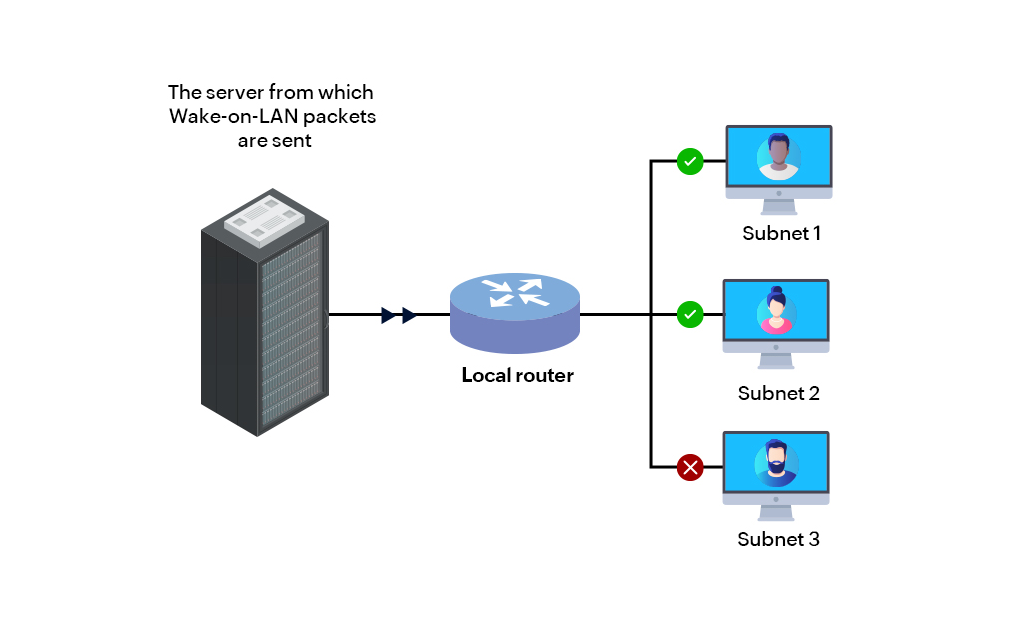
Wake-on-LAN works by sending a Magic Packet across the network to a specific device’s MAC address.
The Wake-on-LAN Process:
- The target computer enters sleep or shutdown mode.
- The NIC continues listening for network traffic.
- A Magic Packet containing the device’s MAC address is sent.
- The NIC recognizes the packet.
- The motherboard powers on the computer.
The Magic Packet usually contains:
- 6 bytes of FF hexadecimal values
- 16 repetitions of the target MAC address
Benefits of Wake-on-LAN
Remote System Access
Users can remotely power on office or home computers from anywhere.
Energy Efficiency
Systems can remain powered off when not in use, reducing electricity consumption.
Simplified IT Management
Administrators can:
- Deploy updates
- Install patches
- Perform maintenance tasks
- Troubleshoot remotely
Automation Support
Wake-on-LAN integrates well with automated scripts and enterprise management systems.
Reduced Operational Costs
Businesses save on power and maintenance expenses by remotely managing systems.
Some Common Uses
Enterprise IT Environments
Organizations use WoL for:
- Overnight software updates
- Security patch deployment
- Remote diagnostics
- Asset management
Remote Work Access
Employees can remotely wake office PCs while working from home.
Home Media Servers
Users wake media servers or NAS devices only when needed.
Gaming Systems
Gamers remotely start high-performance PCs for streaming or cloud gaming.
Smart Home Automation
Wake-on-LAN can integrate with smart home platforms to automate device startup.
Wake-on-LAN Requirements
To use Wake-on-LAN successfully, several conditions must be met.
Hardware Requirements
- WoL-supported motherboard
- Compatible network adapter
- Stable Ethernet connection
Software Requirements
- BIOS/UEFI WoL enabled
- Operating system support
- Wake-on-LAN utility or application
Network Requirements
- Local area network connectivity
- Proper router configuration for internet-based WoL
- Firewall allowances
How to Enable Wake-on-LAN
Enable Wake-on-LAN in BIOS/UEFI
- Restart the computer.
- Enter BIOS or UEFI settings.
- Locate Power Management settings.
- Enable options such as:
- Wake-on-LAN
- Power On By PCI-E
- Resume By LAN
- Save changes and reboot.
Enable Wake-on-LAN in Windows
- Open Device Manager.
- Expand Network Adapters.
- Right-click the Ethernet adapter.
- Select Properties.
- Under the Power Management tab:
- Enable “Allow this device to wake the computer.”
- Enable “Only allow a magic packet to wake the computer.”
- Under the Advanced tab:
- Enable Wake-on-LAN settings.
Enable Wake-on-LAN in Linux
Use the ethtool command:
sudo ethtool -s eth0 wol gCheck status with:
ethtool eth0Enable Wake-on-LAN in macOS
- Open System Settings.
- Navigate to Energy Saver or Battery settings.
- Enable – Wake for network access
How to Send a Wake-on-LAN Magic Packet
Several tools can send Magic Packets.
Popular Wake-on-LAN Tools
| Tool | Platform |
|---|---|
| WakeMeOnLan | Windows |
| Depicus WoL | Windows/macOS/Linux |
| PowerShell WoL Scripts | Windows |
| etherwake | Linux |
| Mobile WoL Apps | Android/iOS |
Required Information
To send a packet, you typically need:
- MAC address
- IP address or broadcast address
- UDP port (commonly 7 or 9)
Wake-on-LAN Over the Internet
Wake-on-LAN can work over the internet using port forwarding and remote network access configurations.
Steps for Internet-Based WoL
- Configure router port forwarding.
- Reserve a static IP for the target device.
- Use Dynamic DNS if needed.
- Send a Magic Packet to the public IP.
Security Considerations
Exposing WoL services to the internet can create risks. Best practices include:
- Using VPN access
- Restricting allowed IP addresses
- Enabling firewall protections
- Avoiding unnecessary open ports
Wake-on-LAN Troubleshooting
Sometimes Wake-on-LAN may not function properly.
Common Problems
| Problem | Possible Cause |
|---|---|
| PC does not wake | BIOS setting disabled |
| Magic Packet not received | Firewall or router issue |
| WoL works only locally | The router lacks broadcast forwarding |
| Wireless WoL failure | Wi-Fi adapter limitations |
| Shutdown state unsupported | Fast Startup interference |
Troubleshooting Tips
- Verify BIOS settings
- Disable Fast Startup in Windows
- Test WoL within the local network first
- Confirm MAC address accuracy
- Update network adapter drivers
- Use wired Ethernet whenever possible
Wake-on-LAN vs Wake-on-Wireless-LAN
| Feature | Wake-on-LAN | Wake-on-Wireless-LAN |
|---|---|---|
| Connection Type | Ethernet | Wi-Fi |
| Reliability | High | Moderate |
| Power Consumption | Low | Slightly Higher |
| Hardware Support | Common | Limited |
| Configuration Complexity | Lower | Higher |
Traditional Ethernet-based WoL remains more reliable than wireless implementations.
Some Advantages and Disadvantages
Advantages:
- Convenient remote access
- Lower energy consumption
- Centralized system management
- Supports automation
- Cost-effective for businesses
Disadvantages:
- Requires compatible hardware
- Wireless support is inconsistent
- Router configuration may be complex
- Potential security concerns
- Internet WoL setup can be difficult
Best Practices for Wake-on-LAN
To maximize reliability and security:
- Use wired Ethernet connections
- Keep BIOS and drivers updated
- Protect remote access with VPNs
- Reserve static IP addresses
- Monitor network security logs
- Test configurations regularly
Future of Wake-on-LAN
As remote work, cloud management, and automation continue growing, Wake-on-LAN remains valuable in modern IT infrastructure. Integration with smart management platforms, enterprise monitoring systems, and automation frameworks will likely expand WoL usage further.
Energy-efficient computing and remote administration trends also increase the importance of remote power management technologies.
Conclusion
Wake-on-LAN is a powerful and efficient technology for remotely powering devices across a network. From enterprise IT administration to home automation and remote work environments, WoL improves accessibility, reduces energy usage, and simplifies device management.
By properly configuring BIOS settings, network adapters, and network infrastructure, users can reliably implement Wake-on-LAN for both local and remote environments. With the right security measures in place, WoL becomes an essential tool for modern network management and remote computing.